SEPTOR QMSTM

PRODUCT TOUR

See how quality work connects.

Explore actual SEPTOR screens with empty records and account details excluded. These screenshots show the interface; they do not contain customer information or claimed performance results.

01 · START WITH PRIORITIES

See the work needing attention.

The dashboard shows due dates, overdue work, items awaiting review, and high-risk records in your authorized scope. Quick-access buttons lead to training, documents, audits, and meetings.
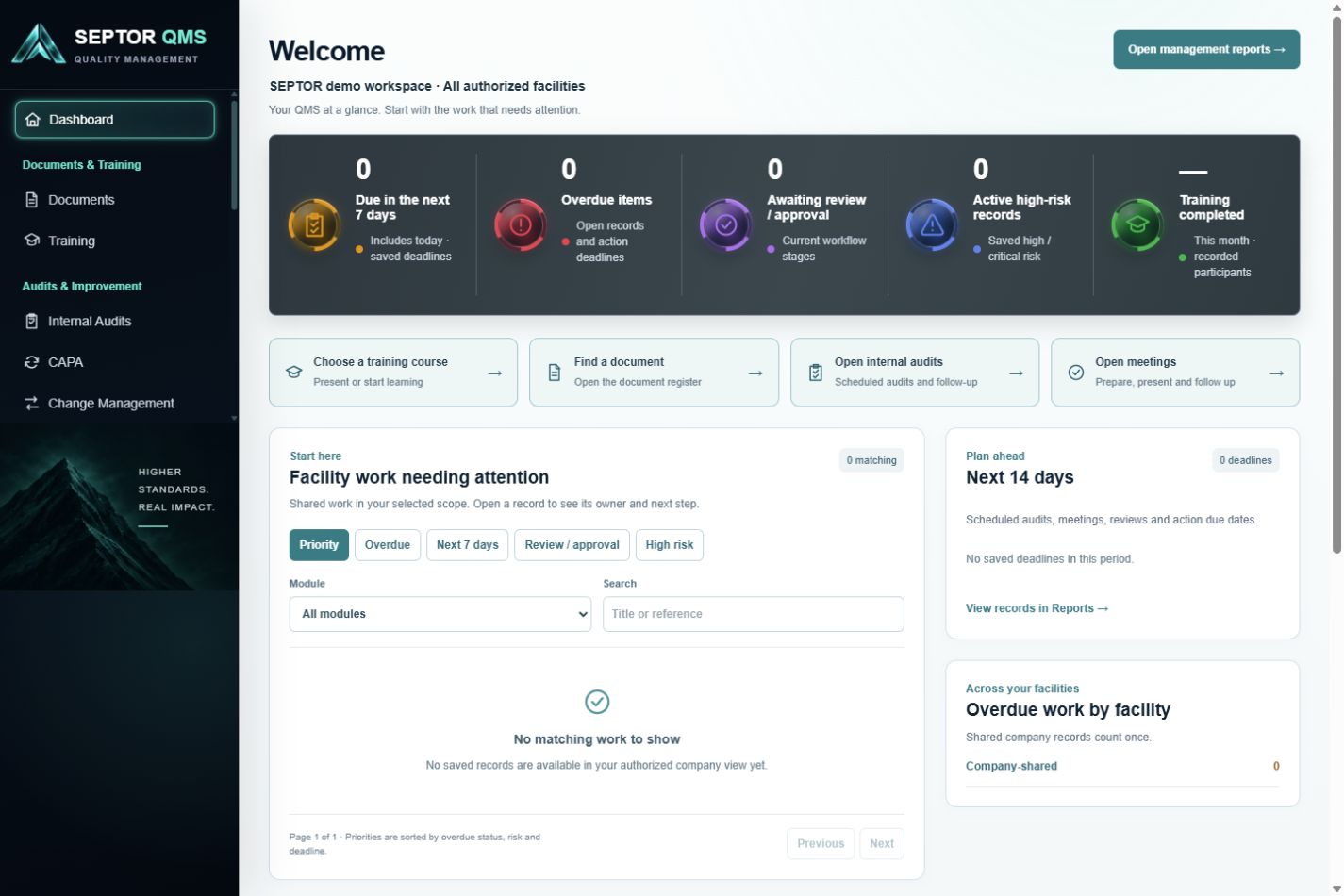
Actual SEPTOR dashboard · empty demo workspace

Dashboard · Empty demo workspace

02 · CONTROL DOCUMENTS

Find the document and its next step.

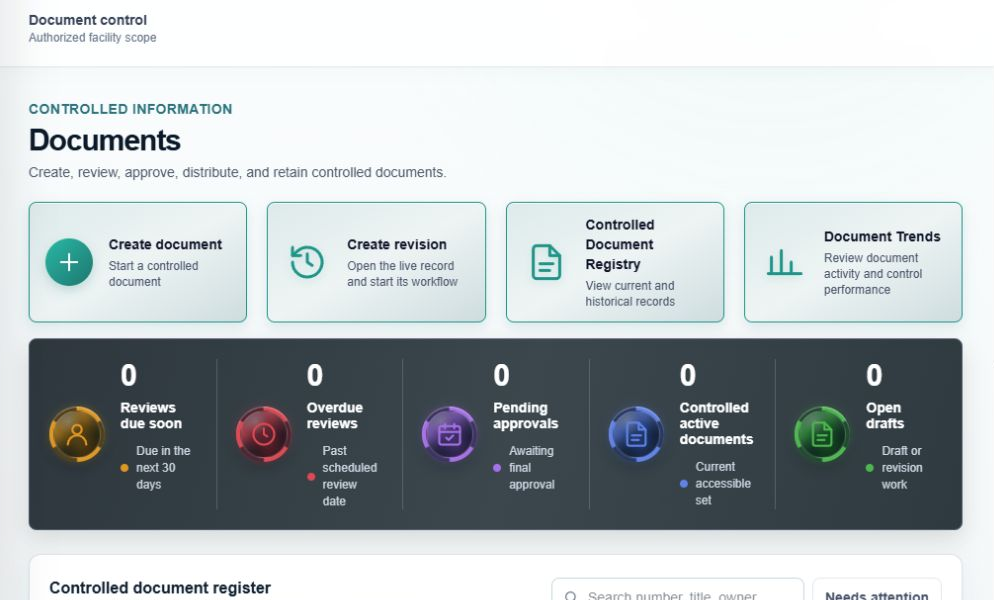
Start a document or revision, open the controlled register, and review document trends. The Documents page highlights upcoming reviews, overdue reviews, pending approvals, active documents, and open drafts.

Actual SEPTOR documents · empty register

Documents · Empty register

03 · MANAGE PRODUCT HOLDS

Review held product in one log.

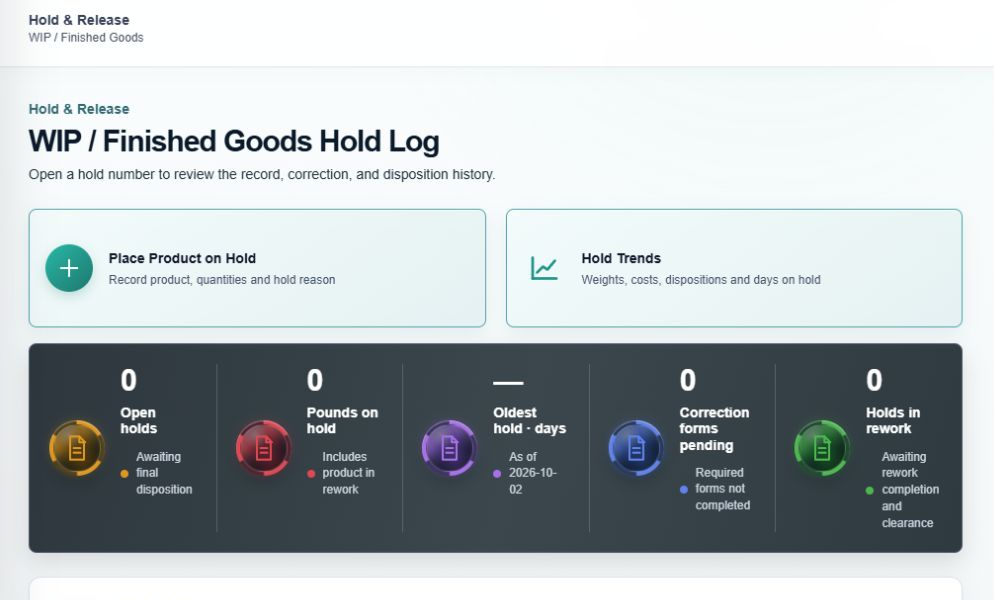
The Hold & Release log shows open holds, remaining pounds, pending correction forms, and product in rework. Search and filter the log, switch column views, and open a saved hold to review its correction and disposition history.

Actual SEPTOR hold & release · empty log

Hold & Release · Empty log

04 · REVIEW PERFORMANCE

Review records by module and facility.

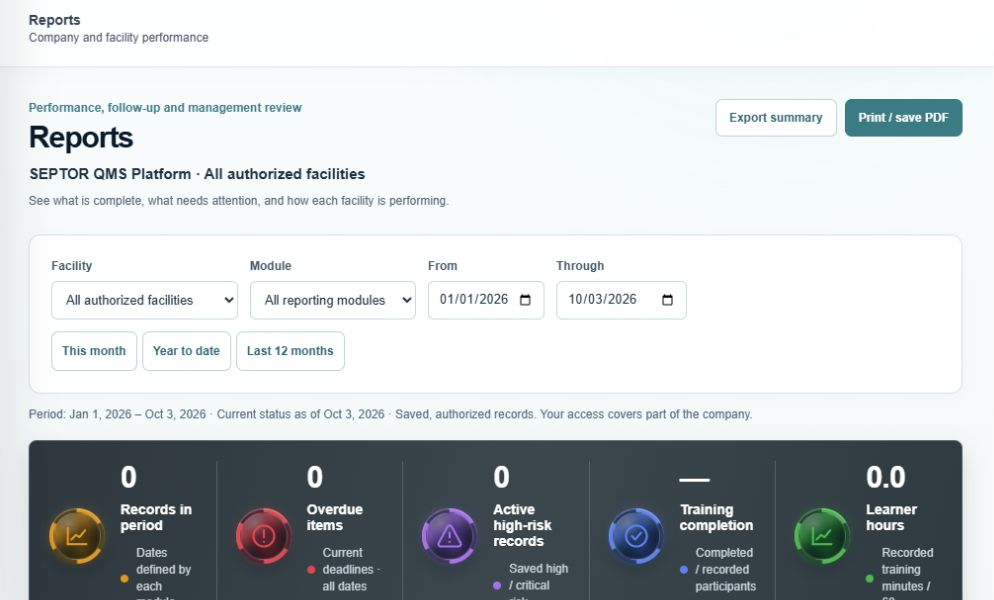
Reports provides module measures and filters for authorized records. Use the reporting controls to review deadlines, workflow status, and facility scope. Results depend on the records saved in the system.

Actual SEPTOR reports · empty workspace

Reports · Empty workspace

Back to top ↑